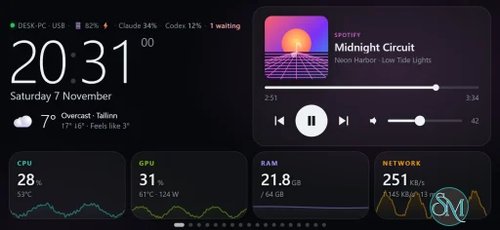
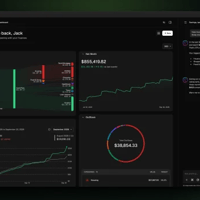
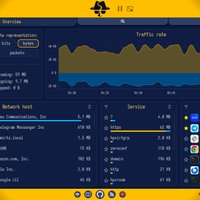

PhoneBox is an open-source application that transforms an old Android smartphone into a customizable dashboard and touch control panel for your computer. Instead of leaving an unused phone in a drawer, you can repurpose it as a dedicated screen for monitoring system resources, controlling media, managing AI coding sessions, and triggering desktop actions.
The application consists of two components: an Android app that displays the dashboard and a desktop agent that collects system information and executes supported commands. They communicate through USB or a paired Wi-Fi connection. PhoneBox supports Windows, Linux, and macOS, and does not require an account or cloud service.
Features
Customizable Dashboard and Widget Editor
PhoneBox includes more than 120 widgets and 30 templates for building personalized dashboards. Its browser-based editor lets you arrange, resize, and configure widgets on a 12 × 6 grid.
You can create multiple pages for different purposes, such as system monitoring, AI coding, music, productivity, and desktop controls. It also supports portrait and landscape layouts, live previews, appearance customization, and Smart Stack, which can rotate through multiple widgets in one space.
System Monitoring
PhoneBox turns your Android phone into a secondary system-monitoring display. It can show CPU and GPU utilization, memory consumption, disk activity, network speed, and ping information.
Additional widgets provide GPU details, temperature readings, resource charts, and running-process information. Hardware monitoring capabilities depend on the operating system, available drivers, and installed utilities.
AI Coding Assistant Monitoring
One of PhoneBox's more interesting features is its integration with AI coding tools. It can display usage quotas, reset times, and estimated consumption rates for supported services, including Claude, Codex, and Antigravity.
The sessions widgets also monitor local Claude Code and Codex activity, including model information, session timing, and token details. GitHub review and CI status widgets provide additional visibility into development workflows.
Claude Code permission prompts can optionally appear on the phone, allowing you to approve or deny requests without returning to your computer. An optional CodexBar integration provides additional quota providers and usage-cost information.
Desktop Control Deck
PhoneBox includes a collection of touch controls that make an Android phone function similarly to a Stream Deck.
You can configure application shortcuts, website links, keyboard combinations, macros, and custom tasks. Other controls cover system volume, microphone settings, media playback, application audio, and OBS operations.
Some advanced controls depend on the operating system and additional utilities. This means the available functionality is not necessarily identical across Windows, Linux, and macOS.
Media and Productivity Widgets
The application includes widgets for displaying currently playing media, controlling playback, and listening to internet radio.
It also offers clocks, weather information, calendars, notes, checklists, countdowns, timers, and Pomodoro sessions. These features make it useful as a small productivity display rather than simply a hardware-monitoring panel.
Automation and Integrations
PhoneBox supports webhook-based automation, allowing external applications and scripts to push values and notifications to the dashboard.
It also integrates with Home Assistant for displaying information and controlling supported devices. Automation rules can react to computer activity and trigger configured actions.
Additional integrations include RSS and Atom news feeds, GitHub information, Discord, and optional Tailscale connectivity.
USB and Wi-Fi Connectivity
PhoneBox supports two connection methods.
USB connectivity uses Android Debug Bridge (ADB) and USB debugging. It can automatically open the dashboard when the phone connects and supports installing or updating the Android application.
Wi-Fi pairing provides a cable-free alternative. You can pair the phone by scanning a QR code and confirming a matching security code. It does not require USB debugging or ADB.
The application also supports pairing multiple phones with separate layouts and switching a phone between paired computers.
Privacy and Security
PhoneBox does not require an account and does not include its own telemetry or analytics. Its desktop settings interface listens on localhost, while optional Wi-Fi communication uses HTTPS with a pinned certificate and paired key.
Configured commands and integration credentials remain on the computer rather than being transferred as arbitrary commands from the phone. Optional integrations can still communicate with external services to retrieve information such as weather, AI usage, and GitHub data.
One security consideration is that the Windows desktop agent is currently distributed without a code-signing certificate while its signing application is pending. Windows SmartScreen or antivirus software may therefore display warnings. Review the installation scripts and security documentation before running them.
Download PhoneBox v0.9.14 - Software Mirrors |
|---|
PhoneBox v0.9.14 for Windows |
PhoneBox v0.9.14 for macOS |
PhoneBox v0.9.14 for Linux |
PhoneBox v0.9.14 for Android |
PhoneBox v0.9.14 Source Code |
PhoneBox v0.9.14 Release Notes:A new News feeds widget for your RSS and Atom feeds; the weather says when it can't be fetched instead of loading for good; and Apply JSON in the settings copes with partial configs. New widget
one to open the article in the computer's browser (#108, asked for by Vampie). Add the feeds in Settings › General. The agent fetches each at most every 15 minutes and only while a page shows the widget; the addresses stay on the computer, and a feed on the internet can't send the agent into your local network. Panel
of "Loading…" until the next 15-minute refresh; an error answer is no longer kept as the forecast (#159).
fails, and the clock's weather line clears the old temperature when there is no forecast.
match stopped it says so (#152, blx10). Settings
editor, and anything that isn't a JSON object is refused (#150, Seyamalam).
moving one no longer makes the agent refuse the whole save (#154, Seyamalam). |
Performance and Compatibility
PhoneBox uses a relatively lightweight architecture, with a .NET desktop agent and an Android application built with Kotlin and WebView-based widgets. The desktop agent collects system information and handles integrations, while the phone primarily displays the dashboard and sends control requests.
The desktop agent supports:
Windows 10 and Windows 11 on x64.
Linux on x64 and ARM64 with glibc.
macOS on Intel and Apple Silicon.
The Android application supports Android 7.0 and later. Root access is not required.
Hardware monitoring and control capabilities vary by platform. For example, Linux media controls may require playerctl, while volume controls can use wpctl or pactl. NVIDIA monitoring uses nvidia-smi, and additional Windows hardware sensors can be provided through LibreHardwareMonitor.
Windows ARM and musl-based Linux distributions such as Alpine do not currently have official desktop release builds.
System Requirements
Desktop:
Windows 10/11 x64, supported Linux x64/ARM64, or macOS Intel/Apple Silicon.
USB data cable and ADB for USB connectivity, or a supported local network for Wi-Fi pairing.
Additional utilities may be required for certain media, hardware-monitoring, and control features.
Android:
Android 7.0 or later.
An Android smartphone or tablet.
USB debugging enabled for USB connectivity, or Wi-Fi enabled for wireless pairing.
The desktop releases include the .NET runtime, so a separate .NET installation is not required.
Pros and Cons
Pros
Repurposes old Android phones as useful desktop dashboards.
Supports Windows, Linux, and macOS.
More than 120 widgets and 30 dashboard templates.
Extensive system-monitoring and AI coding integrations.
Includes a customizable desktop control deck.
Supports both USB and Wi-Fi connections.
No mandatory cloud account or subscription.
Open-source and self-hosted communication architecture.
Cons
Requires a separate Android device to use the dashboard.
Some widgets and controls depend on operating-system-specific utilities.
Certain integrations require additional configuration or external accounts.
Windows desktop releases are currently unsigned.
Wi-Fi connectivity requires additional pairing and configuration.
How to Install
PhoneBox provides installation scripts for Windows, Linux, and macOS. The easiest approach is to install the desktop agent first and then connect your Android device.
1. Install the desktop agent
On Windows, open PowerShell and execute:
irm https://raw.githubusercontent.com/ersinkoc/phonebox/main/setup.ps1 | iexOn Linux or macOS, execute:
curl -fsSL https://raw.githubusercontent.com/ersinkoc/phonebox/main/setup.sh | bashThe installation script downloads the appropriate release, verifies its SHA-256 checksum, checks for missing dependencies, and configures startup options.
2. Install the Android application
For USB connectivity, enable Developer Options and USB debugging on your Android phone. Connect it to the computer using a data cable and authorize the debugging request. The setup process can install the application automatically.
For wireless connectivity, download the APK from the project's GitHub releases and install it manually.
3. Connect your phone
For USB, connect the authorized device and allow PhoneBox to open the dashboard.
For Wi-Fi, enable the Wi-Fi and Tailscale settings if needed, restart the desktop agent, and select the wireless pairing option. Scan the displayed QR code and confirm the matching security code.
4. Customize the dashboard
Open the PhoneBox settings interface at:
http://127.0.0.1:8765Choose a template, add widgets, and arrange them to suit your screen. Save the layout and use the live preview to check how it appears on your Android device.
The installation scripts can also be executed again to update or repair an existing installation while retaining its settings and pairings.
Final Verdict
PhoneBox is an interesting project that gives old Android smartphones a practical second life. Its combination of system monitoring, AI coding session tracking, media controls, automation, and customizable widgets makes it more versatile than a conventional hardware-monitoring dashboard.
Its strongest advantage is the ability to combine several desktop utilities into one touch-enabled interface. Developers can monitor AI coding sessions and system resources, while everyday users can build a dedicated media controller, productivity display, or smart home control panel.
There are some limitations. Advanced controls depend on the host operating system, certain integrations require additional setup, and the unsigned Windows agent deserves attention before installation. Nevertheless, the USB and Wi-Fi connection options, local-first architecture, and extensive customization make it a compelling solution.