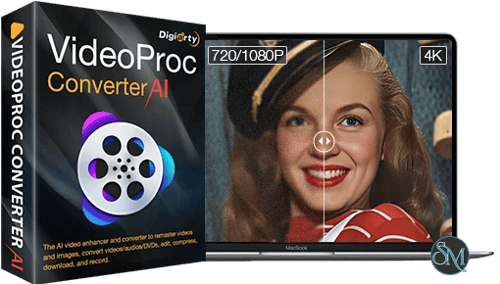
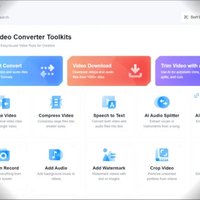

VideoProc Converter AI is a comprehensive multimedia application developed by Digiarty Software. It combines AI-powered video enhancement with traditional tools for conversion, compression, editing, downloading, and screen recording. Instead of requiring multiple separate applications for everyday multimedia tasks, VideoProc integrates them into a single desktop interface.
Its primary appeal lies in its AI processing capabilities. Users can upscale low-resolution video, generate additional frames for smoother playback, stabilize shaky footage, and optimize both image and audio quality. The application is particularly useful for those working with legacy footage, smartphone videos, action camera recordings, and large media collections.
Features
AI Video Enhancement
VideoProc Converter AI includes several AI tools designed to improve video quality:
Super Resolution: Upscales low-resolution footage by 2x, 3x, or 4x, helping improve older, compressed, or low-quality videos.
Frame Interpolation: Generates additional frames to increase video frame rates, with supported output options reaching 120, 240, and 480 FPS.
Video Stabilization: Reduces camera shake, jitter, and unwanted movement in footage. Availability varies by platform, with stabilization listed for Windows.
Audio Enhancement: Reduces unwanted background noise and separates vocals from instrumental audio.
These tools can help improve existing footage, although results depend on the original recording, selected AI model, and available hardware. AI enhancement cannot reliably recreate details that were never captured.
AI Image Enhancement
The application also includes image processing tools, making it useful beyond video editing. Its image AI features include:
Image upscaling to higher resolutions, including 8K and 10K output.
Noise reduction and sharpening.
Deblurring and JPEG artifact reduction.
Face restoration for old or damaged photographs.
Colorization of black-and-white images.
This is a useful addition for users who regularly work with both photographs and video content.
Get Discounts for the Digiarty Software Products below: | ||
|---|---|---|
$29.95 | ||
$119.90 | ||
VideoProc Converter AI (Lifetime License for 2-5 PCs) + Gifts | VideoProc Converter AI (Lifetime License for 2-5 Mac) +Gifts | $39.95 |
$78.90 | ||
$38.90 | ||
VideoProc Converter AI [Premium 365 for 3 Macs] + Bonus Gift | $59.95 | |
Video Conversion and Compression
VideoProc supports a wide range of video and audio formats. It can convert media into common formats such as MP4, MOV, MKV, AVI, WebM, MP3, AAC, and FLAC.
Users can also adjust output parameters, including resolution, frame rate, bitrate, aspect ratio, audio channels, and codecs. Batch processing makes it easier to convert multiple files without handling them individually.
The compression tools are useful for reducing large video files while maintaining reasonable visual quality. Hardware acceleration can also help speed up supported conversion workloads.
Video Editing Tools
VideoProc includes basic editing features for everyday video adjustments:
Cut, trim, split, and merge video clips.
Crop, rotate, and flip footage.
Adjust playback speed.
Apply filters and visual effects.
Adjust brightness, contrast, saturation, and other color settings.
Add text, watermarks, and subtitles.
Correct audio and video synchronization.
It is not intended to replace a professional nonlinear editing application, but its built-in tools are convenient for quick edits and media preparation.
Media Downloader and Screen Recorder
Additional utilities make VideoProc a broader media toolkit. Its downloader can save videos, audio, playlists, and subtitles from supported online services. It also includes a screen recorder for capturing desktop activity, gameplay, webcam footage, and microphone or system audio.
Recording options include picture-in-picture and green-screen functionality, which can be useful for tutorials, presentations, and basic content creation.
Online downloading support depends on the website and may change when external services update their platforms. Users should also respect copyright and the terms of the services they access.
Performance and Compatibility
VideoProc Converter AI uses GPU acceleration to improve video conversion and AI processing performance. It supports compatible NVIDIA, AMD, and Intel graphics hardware, while Apple Silicon is also listed among its supported hardware platforms.
The actual processing speed depends heavily on the selected AI model, video resolution, file duration, and available CPU, GPU, and memory. AI upscaling and frame interpolation are considerably more demanding than ordinary video conversion. A compatible graphics processor can make a substantial difference when working with high-resolution footage.
The application supports Windows and macOS, although individual features and hardware acceleration options differ between platforms. For example, its technical specifications identify Windows-specific video stabilization support and different macOS requirements for AI functionality.
One limitation is that AI processing can consume significant system resources and storage space. Users working with long videos or high-resolution output should expect longer processing times on less powerful computers.
System Requirements
Windows
Windows 7, 8, 8.1, 10, or 11.
Intel or AMD processor.
At least 1 GB RAM for basic operation, with 2 GB or more recommended.
200 MB of installation space.
Compatible NVIDIA, AMD, or Intel graphics hardware for acceleration.
macOS
macOS 10.13 or later for classic features.
macOS 10.15 or later for AI capabilities.
Apple Silicon support, including M-series processors.
Additional AI Requirements
AI features have higher resource requirements than basic conversion. Depending on the model and operation, compatible GPU APIs and hardware acceleration are necessary. VideoProc lists Vulkan 1.2 or later for certain AI operations, OpenCL support for stabilization, and additional DirectML or CUDA requirements for specific super-resolution models.
The minimum installation requirements should not be treated as a recommendation for demanding AI workloads. A modern processor, sufficient RAM, and a compatible GPU are preferable for smoother processing.
Pros and Cons
Pros
Combines AI video enhancement with conventional media tools.
Upscales low-resolution videos and images.
Supports AI frame interpolation and video stabilization.
Includes image restoration and audio enhancement tools.
Supports a wide range of media formats and codecs.
Offers batch conversion and GPU acceleration.
Includes editing, compression, downloading, and screen recording.
Supports Windows and macOS.
Cons
AI processing can be demanding on system resources.
Results vary depending on source quality and selected AI model.
Some AI features have platform-specific limitations.
Not a replacement for professional video editing software.
The free version has restrictions on processing length and certain features.
How to Install
Visit the official VideoProc Converter AI website.
Download the installer for Windows or macOS.
Run the installer and follow the installation instructions.
Launch VideoProc Converter AI.
Import a video, image, or audio file, depending on the task.
Select the appropriate AI enhancement, conversion, editing, or recording tool.
Configure the output settings and start processing.
The application offers a free version for testing its interface and basic functionality. Some processing features have usage restrictions, so users should check the free-versus-full feature comparison before relying on it for larger projects.
Final Verdict
VideoProc Converter AI is a practical multimedia toolkit for users who want AI enhancement and conventional video processing in one application. Its combination of video upscaling, frame interpolation, stabilization, image restoration, audio enhancement, conversion, compression, and recording makes it more versatile than a simple video converter.
Its biggest advantage is convenience. Users can improve footage, convert formats, make basic edits, and record their screens without constantly switching between different applications. However, the AI tools require suitable hardware, and the results should not be mistaken for perfect restoration of heavily damaged or extremely low-quality footage.
It is not designed to compete with professional video editing suites, but it offers a useful balance of AI processing and everyday media utilities.