![VideoProc Converter AI V8.12 [Lifetime License for 1 Mac] + Gifts](https://www.software-mirrors.com/cdn-cgi/image/f=avif,fit=crop,w=200,h=200/https://res.cloudinary.com/db2xcqzpi/image/upload/v1766300491/software-mirrors/xlhbxczwsgfsy2jmg6ao.jpg)

MKVToolNix is one of those applications that can look complicated at first, but becomes incredibly useful once you understand what it actually does. It is a free and open source collection of tools for creating, editing, inspecting, splitting, merging, and manipulating Matroska files such as MKV and MKA.
Unlike conventional video editors, MKVToolNix generally does not try to re-encode your video. Its main strength is multiplexing, which means combining existing video, audio, subtitle, chapter, metadata, and attachment streams into a new Matroska container.
That makes it exceptionally useful for people who maintain large movie and TV collections.
What Is MKVToolNix?
MKVToolNix is a collection of command-line tools and a graphical interface for working with Matroska media files.
The main tools include:
mkvmerge for creating and combining Matroska files
mkvinfo for inspecting Matroska files
mkvextract for extracting tracks and other elements
mkvpropedit for modifying properties without remuxing the entire file
mmg and the modern MKVToolNix GUI for graphical workflows
The project supports Windows, macOS, and Linux.
What Makes MKVToolNix So Useful?
The biggest advantage is that you can manipulate the contents of an MKV file without having to re-encode the actual video.
For example, imagine you have a 30 GB movie with:
One video track
Three audio tracks
Five subtitle tracks
Multiple chapters
Embedded fonts
You might want to remove two audio tracks and three subtitle tracks.
With a conventional video editor, this could involve unnecessarily processing the video.
With MKVToolNix, you can simply select the tracks you want to keep and create a new MKV.
The video can remain untouched.
That makes the operation dramatically faster than re-encoding.
Download MKVToolNix 102.0 - Software Mirrors |
|---|
MKVToolNix 102.0 for WindowsMKVToolNix 102.0 - 64bit Installer (exe) MKVToolNix 102.0 - 64bit Portable (7z) |
Add and Remove Audio Tracks
This is probably one of the most common reasons people use MKVToolNix.
You can easily choose which audio tracks should remain in the final file.
For example, you could keep:
Japanese DTS-HD MA
English AAC
And remove:
French AC-3
German AC-3
Commentary
The original audio streams can be copied without conversion.
This is particularly useful for people maintaining movie collections where releases contain many unnecessary language tracks.
Subtitle Management
MKVToolNix is excellent for managing subtitles.
You can add external subtitle files to an existing video and configure properties such as:
Language
Track name
Default track
Forced track
Hearing-impaired flag
Subtitle track order
You can also remove unwanted embedded subtitles.
This makes it easy to customize a release without touching the actual video or audio.
Add External Subtitles
Suppose you have an MKV containing a movie but want to add an external .srt or .ass subtitle.
MKVToolNix can add the subtitle directly into the MKV container.
This is especially useful with ASS subtitles because fonts and other resources can also be embedded as attachments.
The resulting file becomes a self-contained package.
Embedded Fonts
Matroska supports attachments, and MKVToolNix can manage them.
This is particularly important for styled subtitles.
An ASS subtitle may rely on specific fonts to display correctly. You can add those fonts as attachments to the MKV so compatible media players can access them.
For anime and other heavily styled subtitle releases, this is a particularly useful feature.
Chapters
MKVToolNix provides extensive chapter support.
You can import chapters, create new chapters, edit existing chapter information, and control chapter metadata.
This is useful for movies containing:
Opening chapters
Scenes
Episodes
Commercial breaks
Special features
You can also use chapter information when splitting files.
Splitting MKV Files
MKVToolNix can split a large Matroska file into multiple files.
Splitting can be performed based on different criteria, including timestamps, file sizes, and chapters.
This is useful when dealing with very large recordings or when you need to divide a long file into separate episodes.
Because the operation is based around the container rather than traditional video editing, it can often be completed without re-encoding the video.
Joining and Appending Files
MKVToolNix can also append compatible files.
For example, if a recording was split into multiple segments, compatible segments can be combined into a single Matroska file.
This is useful for combining video segments while preserving the existing streams rather than re-encoding everything.
There are some compatibility rules, so files aren't necessarily interchangeable simply because they contain the same video codec.
Metadata Editing
MKVToolNix gives you control over Matroska metadata.
You can modify things such as:
Track names
Languages
Default flags
Forced flags
Display dimensions
Track ordering
Chapter metadata
Segment information
This is particularly useful for cleaning up media libraries.
For example, you can turn a generic track name into something more descriptive such as:
Japanese DTS-HD MA 5.1
or
English Commentary
That makes the file much easier to manage in media servers and playback applications.
Header Editor
The header editor provides another way to modify certain properties of existing Matroska files.
Unlike a complete remux, some changes can be made directly to the existing file.
This can be extremely fast when you only need to adjust metadata or specific Matroska properties.
The feature is powerful, although users should understand what they are changing because low-level container modifications can affect compatibility.
MKVToolNix GUI
You don't have to use the command line.
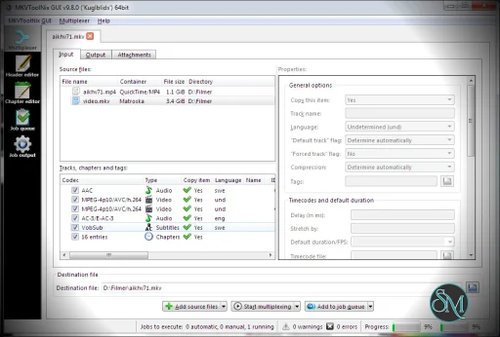
The MKVToolNix GUI provides a graphical interface for most common operations.
You can drag a video into the application, inspect its tracks, choose what should be included, configure metadata, and start the multiplexing process.
For everyday use, the GUI is more than sufficient.
The command-line tools become particularly valuable when you need automation.
Command Line Tools
This is where MKVToolNix becomes especially powerful for advanced users.
The command-line utilities can be scripted and integrated into automated media-processing workflows.
For example, you can build scripts that:
Remove unwanted language tracks
Add subtitles
Rename tracks
Set default tracks
Split files
Extract subtitles
Extract audio
Generate reports
Process entire directories
This makes MKVToolNix a good fit for media servers and large collections.
mkvmerge
mkvmerge is arguably the most important tool in the entire package.
It takes video, audio, subtitle, chapter, and attachment streams and creates a Matroska file from them.
A typical workflow might be:
Video from one file
Audio from another file
Subtitle from an external file
Chapter information from another source
Fonts as attachments
And mkvmerge combines everything into one MKV.
The original streams can be copied directly without re-encoding.
mkvinfo
mkvinfo is useful when you need to understand what is actually inside an MKV file.
It can expose information about:
Tracks
Codecs
Languages
Track IDs
Chapters
Attachments
Segment information
Timing information
This is particularly helpful when troubleshooting media files or preparing a command-line operation.
mkvextract
mkvextract does essentially the opposite of multiplexing.
It allows you to extract individual elements from an MKV.
For example, you can extract:
Audio
Subtitles
Chapters
Attachments
Timecodes
Tags
This is extremely convenient when you need a subtitle or audio track from a larger MKV without converting the entire file.
mkvpropedit
mkvpropedit is particularly useful when you only need to modify certain Matroska properties.
It can edit selected metadata without creating an entirely new MKV.
This can save considerable time when working with very large files.
For example, changing a track property on a 50 GB movie doesn't necessarily need to involve copying the entire 50 GB video stream again.
No Traditional Video Re-Encoding
This is probably the most important thing beginners should understand.
MKVToolNix is not primarily a video encoder.
If you want to convert H.264 into H.265, reduce bitrate, resize a video, or convert DTS to AC-3, MKVToolNix isn't the right tool.
It focuses on the container and its streams.
That distinction is important.
If you want to change the actual encoded video, use a tool such as FFmpeg or HandBrake.
If you want to rearrange, add, remove, or modify streams inside a Matroska container, MKVToolNix is often the better choice.
Excellent for Media Libraries
MKVToolNix is particularly useful for people who maintain large media collections.
For example, you can clean up downloaded releases before adding them to Jellyfin, Plex, or another media server.
You could:
Remove unwanted languages
Remove commentary tracks
Add missing subtitles
Set the correct default audio
Set the correct default subtitle
Rename tracks
Add chapters
Embed subtitle fonts
Remove unnecessary attachments
The result is a cleaner and more predictable media library.
Performance
Because MKVToolNix can copy streams without re-encoding them, many operations are significantly faster than conventional video editing.
The actual speed depends heavily on storage performance, file size, and what operation you're performing.
A simple metadata modification can be almost instantaneous.
A full remux of a large movie still requires reading and writing the streams, so it can take considerably longer.
Even then, it is generally much faster than encoding the video again.
Pros
Free
Open source
Windows support
Linux support
macOS support
Excellent MKV support
Powerful GUI
Powerful command line tools
No video re-encoding for normal multiplexing operations
Fast remuxing
Add and remove audio tracks
Add and remove subtitles
Subtitle metadata management
Chapter management
Track ordering
Language configuration
Default and forced flags
Embedded font support
Attachment management
File splitting
File joining
Audio and subtitle extraction
Metadata editing
Excellent scripting capabilities
Very mature project
Active development
Cons
Primarily focused on Matroska
Not a conventional video editor
Does not replace FFmpeg for video conversion
Does not perform general-purpose video encoding
The interface can feel intimidating for beginners
Some operations require understanding codecs and container formats
Remuxing still requires reading and writing the media data
Who Should Use MKVToolNix?
MKVToolNix is ideal for anyone who works with MKV files regularly.
It is especially useful for:
Movie collectors
Anime collectors
Plex users
Jellyfin users
Media server administrators
Video archivists
Subtitle enthusiasts
Content creators
Power users
System administrators
Anyone managing large video libraries
If you frequently download or archive media files, MKVToolNix is one of those utilities that quickly becomes indispensable.
MKVToolNix vs FFmpeg
FFmpeg is considerably broader.
It can encode, decode, convert, filter, stream, record, and manipulate multimedia in many different formats.
MKVToolNix is much more focused.
If your task is:
"Convert this video to H.265"
Use FFmpeg.
If your task is:
"Remove the French audio track, add this subtitle, set Japanese as the default audio, and keep the original video untouched"
Use MKVToolNix.
They complement each other rather than directly replacing each other.
Final Verdict
MKVToolNix is one of the best utilities available for anyone who works with Matroska files.
Its greatest advantage is its focus. It doesn't try to be a complete video editor. Instead, it gives you extremely precise control over the contents and metadata of MKV and related Matroska files.
The ability to add or remove tracks, manage subtitles, configure chapters, edit metadata, extract streams, split files, and remux media without re-encoding makes it incredibly useful for maintaining a serious media library.
Its command-line tools make it even more powerful for automation, while the graphical interface keeps common tasks accessible to less technical users.
The only real downside is that beginners may initially find the terminology and interface overwhelming. Once you understand tracks, containers, codecs, languages, flags, and multiplexing, however, MKVToolNix becomes an exceptionally efficient tool.
If you regularly manage MKV files, MKVToolNix is one of the first applications you should install.