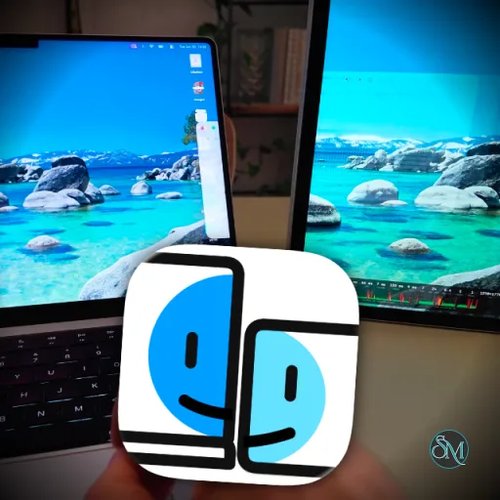

OpenDisplay is a free, open-source utility that turns an iPhone or iPad into a true second monitor for a Mac. Unlike simple screen mirroring, it creates a virtual display that macOS treats as an additional monitor. The connection can use USB or WiFi, with support for Retina resolution, touch input, portrait mode, and low-latency H.264 streaming.
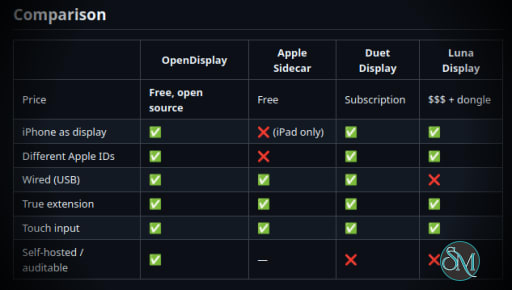
OpenDisplay focuses on providing a straightforward alternative to Sidecar and commercial second-display applications.
The main feature is true display extension. Windows can be moved between the Mac's main display and the iPhone or iPad, and the additional screen can be arranged through macOS display settings. Screen mirroring is also available.
USB connectivity is designed for low latency and works through macOS's built-in usbmuxd. WiFi connectivity is also supported, with Bonjour providing automatic device discovery on the local network.
The application supports Retina and HiDPI output, matching the device panel at its native pixel density. Touch input allows tapping, dragging, and two-finger scrolling, while the display can be used in either portrait or landscape orientation.
OpenDisplay uses hardware H.264 encoding through VideoToolbox and includes several latency-oriented optimizations. The project also supports using a spare Mac as a display through a separate receiver application.
Performance and Compatibility
OpenDisplay is designed around low-latency streaming rather than conventional USB display hardware. The Mac creates a virtual display, captures it using ScreenCaptureKit, encodes the frames using hardware H.264, and sends them to the receiving device over TCP.
USB is the recommended connection when latency and stability are important because it avoids WiFi interference. WiFi provides more flexibility but depends on the quality of the local network.
Recent releases have also included performance improvements aimed at reducing lag spikes during scrolling and fast drawing.
The current receiver supports iPhone and iPad devices running iOS or iPadOS 16 or newer. The Mac sender requires macOS 14 or newer. A separate Mac receiver supports macOS 12 Monterey or newer.
One limitation is that the project relies on a private CoreGraphics API for virtual display creation. This is one reason OpenDisplay is distributed outside the Mac App Store.
Download OpenDisplay v1.30.1 - Software Mirrors |
|---|
OpenDisplay v1.30.1 for macOS |
OpenDisplay v1.30.1 for Linux |
OpenDisplay v1.30.1 for Android |
Others Download related to OpenDisplay v1.30.1 |
OpenDisplay v1.30.1 Source Code |
OpenDisplay v1.30.1 Release Notes:1.30.1 (2026-10-29)Bug FixesLinux (beta)The Linux sender (od-sender, Wayland) and receiver (od-receiver), version 1.30.1 like the Mac and iOS apps. Beta: tested on Omarchy / Hyprland 0.55+; Sway 1.10+, KDE Plasma 6.8+ and GNOME 50+ are experimental. Setup, configuration and known issues: linux/README.md.
Sender, any distribution: od-sender-x86_64-unknown-linux-gnu.tar.gz runs on x86_64 Linux with glibc 2.38 or newer (Ubuntu 24.04, Debian 13, Fedora 39 and later); od-sender-aarch64-unknown-linux-gnu.tar.gz on aarch64 Linux with glibc 2.39 or newer (Ubuntu 24.04, Debian 13, Fedora 40 and later). FFmpeg n9.0.2 and x264 are linked in statically with only the H.264 encoders the sender uses, so no FFmpeg install is needed; PipeWire (libpipewire-0.3, present on any current desktop) must be installed.
install.sh installs od-sender, a desktop entry and a systemd --user template unit pointing at it. Each tarball also has the license (GPL-3.0; this build includes GPL x264), THIRD-PARTY-LICENSES.txt (FFmpeg, x264, OpenH264 and the Rust crates linked in) and PROTOCOL.md.
Arch Linux / Omarchy: build the package from this release's source; it links the system FFmpeg:
linux/packaging/arch/opendisplay-receiver next to it builds the receiver the same way.
Receiver, any distribution incl. SteamOS: flatpak install --user od-receiver-x86_64.flatpak (or od-receiver-aarch64.flatpak), then start "OpenDisplay Receiver". It fills the screen when a sender connects.
Linked-in sources: FFmpeg n9.0.2 and x264 b35605a, configured by build-static.sh. Source tarball sha256 (PKGBUILD): 97b1be2538f3a02605cd60e0a85ffce1623491df0d59d72fd05e819ebe7ddac3
|
System Requirements
Mac sender
macOS 14 or newer
iPhone or iPad running iOS or iPadOS 16 or newer
USB data cable for wired operation, or a local WiFi network
Screen Recording permission
Accessibility permission for touch and scrolling
Local Network permission when using WiFi
Mac receiver
macOS 12 Monterey or newer
WiFi, Ethernet, Thunderbolt, or supported USB-C networking connection
A data-capable USB cable is required for USB mode. A charge-only cable will not work.
Pros and Cons
Pros
Free and open source
Turns an iPhone or iPad into a real extended display
USB and WiFi connectivity
Retina and HiDPI support
Touch and two-finger scrolling
Portrait and landscape modes
Hardware H.264 encoding
No account or subscription required
Screen data stays directly between the connected devices
Supports multiple connected displays
Cons
Requires a Mac as the sending computer
macOS 14 or newer is required for the sender
Requires several macOS and iOS permissions
WiFi performance depends on the local network
Uses a private macOS API
Some features such as Apple Pencil support and HEVC are still on the roadmap
How to Install
For the Mac, download the prebuilt OpenDisplay application and install it in the Applications folder. The project provides signed and notarized Mac releases.
On the iPhone or iPad, install the receiver through the project's TestFlight beta or build the application from source using Xcode.
After opening the applications, connect the iPhone or iPad to the Mac with a data-capable USB cable for the lowest-latency setup. Alternatively, connect both devices to the same WiFi network and select the device from OpenDisplay's connection menu.
On the first run, allow Screen Recording and Accessibility permissions on the Mac. WiFi mode additionally requires Local Network permission on both devices.
Final Verdict
OpenDisplay is one of the more interesting open-source options for using an iPhone or iPad as a second monitor on a Mac. Its biggest advantage is that it provides a genuine extended display rather than simply mirroring the Mac screen, while avoiding subscriptions, dedicated hardware, and user accounts.
USB connectivity, Retina output, touch input, and hardware H.264 encoding make it practical for secondary-screen tasks. The main drawbacks are its Apple-only ecosystem, macOS permission requirements, and reliance on a private API.
For Mac users with a spare iPhone or iPad, OpenDisplay is a strong free alternative to commercial second-display solutions.