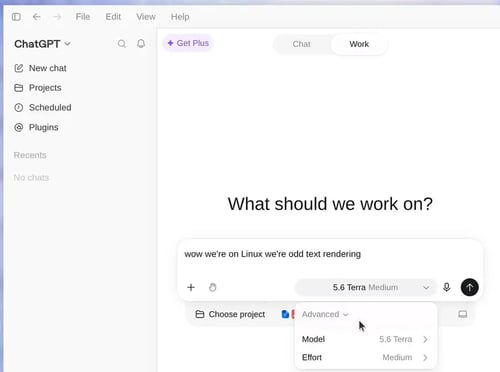




ChatGPT for Linux is OpenAI's official desktop application for Linux, bringing ChatGPT and Codex into a dedicated desktop environment instead of requiring users to work exclusively through a browser.
The Linux app is currently offered as a preview and supports major Linux distributions including Ubuntu, Debian, Fedora, and Arch Linux. It provides access to projects, local files, Codex, desktop workflows, and the broader ChatGPT experience from a native Linux application.
For Linux users who spend much of their time coding or working with local files, the integration with Codex is the biggest reason to use the desktop application.
Features
The ChatGPT Linux app provides access to:
ChatGPT conversations
Projects
Local files and folders
Codex coding agent
Local development workflows
Integrated terminal workflows
Git-based development
Browser integration
Plugins and skills
Scheduled tasks
File creation and inspection
Long-running work
Configurable permissions
Codex configuration
Local environment support
Worktrees
MCP integrations
Desktop application shortcuts
The application can work with a folder selected by the user, allowing ChatGPT and Codex to inspect and modify files within the chosen project environment.
For developers, this makes the application substantially more useful than simply opening ChatGPT in a browser. Codex can inspect repositories, edit source files, run commands and work with the tools already installed on the Linux system.
Download ChatGPT desktop app for Linux - Software Mirrors |
|---|
Download ChatGPT desktop app for Linux (DEB x64) Download ChatGPT desktop app for Linux (DEB ARM64) Download ChatGPT desktop app for Linux (RPM x64) Download ChatGPT desktop app for Linux (RPM ARM64) |
Performance and Compatibility
The Linux application is distributed using native Linux package formats rather than requiring users to install a generic Windows compatibility layer.
Officially supported distributions currently include Ubuntu 24.04 LTS and 26.04 LTS, Debian 13, Fedora 43 and 44, and current fully updated Arch Linux. Each supported distribution has x64 and ARM64 packages.
Ubuntu and Debian use DEB packages, Fedora uses RPM packages, and Arch Linux has an installation script that configures an OpenAI package repository. Updates are then handled through the normal package manager.
Wayland support is still the weakest part of the Linux experience. The application normally uses XWayland when available, while native Wayland can be enabled manually. OpenAI describes native Wayland support as experimental and warns that floating windows, positioning, focus, and keyboard shortcuts may not always work correctly.
There is also an important feature gap compared with the Windows and macOS versions. Computer Use is not yet available in the Linux preview.
System Requirements
The officially supported Linux environments are:
Ubuntu 24.04 LTS
Ubuntu 26.04 LTS
Debian 13
Fedora 43
Fedora 44
Arch Linux current rolling release
Both x64 and ARM64 processors are supported. You can check the architecture with:
uname -mx86_64 indicates x64, while aarch64 or arm64 indicates ARM64.
Other Linux distributions may work, but OpenAI does not formally support them.
Pros and Cons
Pros
Official OpenAI Linux application
Native DEB package for Ubuntu and Debian
Native RPM package for Fedora
Arch Linux package repository
x64 and ARM64 support
Projects and local files
Integrated Codex workflow
Strong developer-oriented functionality
Git and worktree support
Local terminal workflows
MCP support
Skills and plugins
Regular package-manager updates
Experimental native Wayland support
Cons
Still a preview
Only a limited set of distributions is officially supported
Computer Use is unavailable on Linux
Native Wayland support remains experimental
Some Wayland window and keyboard behavior may be unreliable
Users on unsupported distributions may need to troubleshoot compatibility themselves
Less mature Linux integration than the established Windows and macOS applications
How to Install
Ubuntu or Debian
Download the appropriate DEB package and install it with:
cd ~/Downloads
sudo apt install ./chatgpt_amd64.deb
For ARM64, use the ARM64 package instead.
Fedora
Install the RPM package with:
cd ~/Downloads
sudo dnf install ./chatgpt.x86_64.rpm
For ARM64, use the ARM64 package.
Arch Linux
Open a terminal and run the official installation script:
curl --proto '=https' --tlsv1.2 -fL -o install-arch.sh \
  https://persistent.oaistatic.com/codex-app-prod/linux/install-arch.sh

sudo bash install-arch.sh
The installer detects the architecture, configures the signed OpenAI repository, and installs the application. It also performs a full system upgrade and asks for confirmation.
Updating
Ubuntu and Debian:
sudo apt update
sudo apt install --only-upgrade chatgpt
Fedora:
sudo dnf upgrade --refresh chatgptArch Linux:
sudo pacman -SyuFinal Verdict
ChatGPT for Linux is a significant improvement over relying on the web interface alone. The official package support for Ubuntu, Debian, Fedora, and Arch makes installation straightforward, while x64 and ARM64 support gives it unusually broad hardware coverage for an official Linux desktop application.
The strongest reason to install it is Codex. Developers can work with local repositories, files, terminals, Git and development environments without constantly switching between a browser and their desktop tools.
The biggest issue is maturity. The application remains in preview, native Wayland support is experimental, and Computer Use is currently unavailable on Linux. Users running distributions outside the supported list also do not get the same level of official compatibility.
For Linux developers, however, the combination of ChatGPT, local files and Codex makes this much more than a browser wrapper. It is already a useful desktop development environment, even though some platform-specific features still need to catch up with Windows and macOS.