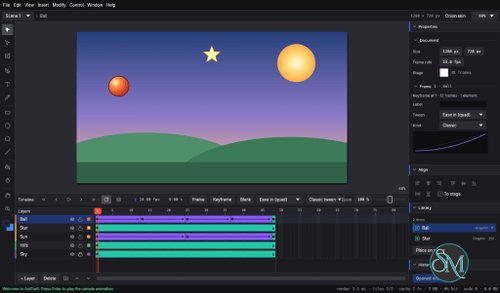
AniCraft is a free, open-source 2D vector animation editor built entirely in Rust. It provides a traditional animation workspace—complete with drawing tools, layers, keyframes, a timeline, symbols, and tweening—making it a compelling alternative to commercial animation software like Adobe Animate.
The application is designed for illustrators, animators, motion designers, educators, and game developers who need a tool to create vector animations and export them into various formats.
One of AniCraft’s greatest strengths lies in its native architecture. Rather than relying on Electron or a webview-based interface, it utilizes a Rust-based engine and a desktop graphical user interface (GUI). Furthermore, it exposes its animation engine through a command-line interface, a JSON-lines protocol, and the Model Context Protocol (MCP), enabling developers and AI agents to automate animation workflows.
Download AniCraft v0.2.1 - Software Mirrors |
|---|
AniCraft v0.2.1 for Windowsanicraft-0.2.1-windows-x64.msi | 15.24 MB anicraft-0.2.1-windows-x64-symbols.zip | 3.92 MB anicraft-0.2.1-windows-x64-portable.zip | 18.09 MB anicraft-0.2.1-windows-arm64.msi | 13.77 MB |
AniCraft v0.2.1 for macOS |
AniCraft v0.2.1 for Linuxanicraft-0.2.1-linux-x86_64.tar.gz | 18.79 MB anicraft-0.2.1-linux-x86_64.rpm | 19.12 MB anicraft-0.2.1-linux-x86_64.pkg.tar.zst | 11.81 MB anicraft-0.2.1-linux-x86_64.flatpak | 13.71 MB anicraft-0.2.1-linux-x86_64.deb | 19.25 MB anicraft-0.2.1-linux-x86_64.AppImage.zsync | 63.74 kB anicraft-0.2.1-linux-x86_64.AppImage | 18.14 MB anicraft-0.2.1-linux-riscv64.tar.gz | 18.38 MB anicraft-0.2.1-linux-riscv64.rpm | 18.73 MB anicraft-0.2.1-linux-riscv64.deb | 18.78 MB anicraft-0.2.1-linux-aarch64.tar.gz | 17.54 MB anicraft-0.2.1-linux-aarch64.rpm | 18.19 MB anicraft-0.2.1-linux-aarch64.pkg.tar.zst | 11.12 MB anicraft-0.2.1-linux-aarch64.flatpak | 12.09 MB anicraft-0.2.1-linux-aarch64.deb | 18.39 MB |
AniCraft v0.2.1 for BSD |
AniCraft v0.2.1 Source Code |
AniCraft v0.2.1 Release Notes:What's Changed
Full Changelog: v0.2.0...v0.2.1 |
Features
1. Vector Drawing and Illustration Tools
AniCraft includes a collection of vector drawing tools for creating artwork directly on the animation stage.
Its drawing capabilities include:
Selection and Subselection tools for editing objects and individual path points.
Pen tool for creating Bézier paths with adjustable handles.
Pencil tool for freehand drawing with curve fitting and smoothing.
Rectangle and Oval tools.
Polygon and Star tools.
Line and Text tools.
Paint Bucket for filling shapes.
Ink Bottle for modifying strokes.
Solid colors, linear gradients, and radial gradients.
Bitmap fills and customizable stroke styles.
The application also supports shape merging, allowing overlapping vector objects to be combined or divided through drawing operations.
Its Free Transform tool provides interactive scaling, rotation, and positioning, while alignment and distribution tools help organize objects on the stage.
These capabilities make AniCraft suitable for creating vector artwork that can be animated directly without switching to a separate illustration application.
2. Timeline and Keyframe Animation
AniCraft uses a timeline-based animation workflow familiar to users of traditional 2D animation software.
Users can organize artwork into layers and control how objects change over time through keyframes.
Timeline functionality includes:
Creating and editing keyframes.
Inserting blank keyframes.
Moving and extending frame spans.
Selecting multiple frames across different layers.
Copying, cutting, and pasting animation frames.
Organizing layers into folders.
Creating guide, motion-guide, and mask layers.
Managing multiple scenes.
The timeline provides a structured way to control object movement, visibility, and animation timing.
Its frame-based workflow is useful for character animation, motion graphics, animated illustrations, and other projects that require precise control over individual frames.
3. Classic and Shape Tweens
AniCraft supports two important animation techniques: classic tweening and shape tweening.
Classic Tweens
Classic tweens interpolate object properties between keyframes, allowing users to animate transformations without manually creating every intermediate frame.
Supported properties include:
Position.
Rotation.
Scaling.
Opacity.
Color effects.
Other supported object transformations.
The application provides easing presets and custom easing curves for controlling acceleration and deceleration.
Shape Tweens
Shape tweens allow one vector shape to morph into another over a sequence of frames.
For example, users can animate a square transforming into a star or one organic shape gradually changing into another.
This is useful for:
Animated logos.
Morphing illustrations.
Motion graphics.
Animated icons.
Shape-based transitions.
These tweening features reduce the amount of manual frame-by-frame work required for common animation effects.
4. Onion Skinning
AniCraft includes onion skinning to help animators visualize neighboring frames while drawing or adjusting animation sequences.
Instead of viewing only the current frame, users can see previous and upcoming frames as visual references.
This helps with:
Character movement.
Walking and running cycles.
Object transformations.
Smooth transitions.
Frame-by-frame animation.
Maintaining consistent proportions.
Onion skinning is particularly useful for traditional animation workflows where animators need to maintain visual continuity between individual drawings.
5. Symbols, Instances, and Nested Timelines
AniCraft supports reusable graphic symbols and instances with their own timelines.
Rather than duplicating the same artwork throughout a project, users can convert objects into symbols and reuse them across different scenes.
Symbol capabilities include:
Graphic symbols.
Nested timelines.
Loop, Play Once, and Single Frame playback modes.
Movie clips.
Symbol instances.
Filters and blend modes.
Reusable animation components.
This is useful for projects involving repeated characters, animated buttons, interface elements, and other reusable visual components.
Nested timelines also help organize complex animations into smaller, more manageable pieces.
6. Camera Animation and Motion Guides
AniCraft provides camera controls for creating animations that involve movement across a larger scene.
Users can add a camera layer and animate its position, rotation, and zoom through keyframes and supported tweening features.
Camera functionality includes:
Camera positioning.
Zoom adjustments.
Rotation.
Camera keyframes.
Camera preview.
Layer depth for parallax effects.
Motion guides provide another way to control object movement. Animators can draw a path and use it to guide an object's movement between keyframes.
With orientation along the path enabled, the artwork can rotate as it follows the guide.
These features are useful for animated camera movements, object trajectories, parallax scenes, and motion graphics.
7. Adobe Animate and SVG Import
AniCraft supports importing existing animation projects and vector artwork, reducing the need to recreate everything from scratch.
Supported import formats include:
Adobe Animate FLA files.
XFL documents and folders.
SVG vector artwork.
PNG and other supported bitmap assets.
Video files through FFmpeg for reference or frame import.
FLA and XFL compatibility allows users to bring supported Adobe Animate projects into AniCraft.
The importer handles elements such as scenes, layers, keyframes, shapes, gradients, strokes, symbols, and supported tweening features.
However, compatibility is not complete. Some advanced Animate features, including unsupported filters, certain sound settings, and broader ActionScript functionality, may not transfer correctly. The importer reports content that could not be preserved.
SVG import converts supported vector elements into editable shapes on the animation stage. Supported elements include paths, basic shapes, groups, transforms, styles, and gradients.
This makes AniCraft useful for animators who already have vector artwork created in other applications.
8. Multiple Export Formats
AniCraft supports several export formats for animation, web graphics, and game development.
Available export options include:
PNG images.
PNG image sequences.
Animated GIF.
SVG frames.
Lottie animations.
Sprite sheets.
WebM video.
MP4 video through the user's FFmpeg installation.
Sprite sheet export is particularly useful for game developers. It combines animation frames into a PNG image and generates a JSON frame map containing frame positions, dimensions, and durations.
Lottie export provides another option for delivering vector animations to compatible web and application environments.
For video output, AniCraft relies on an externally installed FFmpeg executable rather than bundling its own video codec implementation.
This approach provides flexibility but means users must configure FFmpeg separately when exporting video.
9. Command-Line Interface
AniCraft includes a command-line application called anicraft-cli, allowing users to work with animation projects without opening the graphical interface.
The CLI supports operations such as:
Inspecting animation documents.
Rendering individual frames.
Exporting PNG sequences.
Generating animated GIFs.
Executing animation engine commands.
Creating and modifying documents.
Running JSON-lines automation.
Starting the MCP server.
Example commands:
# Display document information
anicraft-cli info --sample

# Render an individual frame
anicraft-cli render --sample --frame 12 --out frame12.png

# Export an image sequence
anicraft-cli render-seq --sample --out-dir frames

# Generate an animated GIF
anicraft-cli gif --sample --out animation.gif

# List available engine commands
anicraft-cli commands

# Start the JSON-lines interface
anicraft-cli serve --sample
This is particularly useful for developers who want to integrate animation rendering into scripts, automated pipelines, or other applications.
10. MCP Integration and AI Automation
One of AniCraft's more interesting features is its Model Context Protocol integration.
The application exposes its animation engine through MCP, allowing compatible AI assistants to interact with animation projects using structured commands.
Its automation capabilities include:
Creating and modifying animation documents.
Drawing and editing vector objects.
Managing layers and keyframes.
Controlling timeline operations.
Inspecting project information.
Rendering animation frames.
Exporting supported formats.
Because the graphical interface and automation tools use the same underlying engine, AI assistants can perform many of the same operations available through the application.
For example, users can connect AniCraft to Claude Code and provide access to specific project directories.
The integration supports separate read and write directory restrictions, helping limit which files an AI assistant can access or modify.
This makes AniCraft particularly interesting for developers experimenting with AI-assisted animation production.
11. Native Rust Architecture and GPU Rendering
AniCraft is built from scratch in Rust, with a modular architecture separating document management, geometry, rendering, animation evaluation, and the graphical interface.
Its design avoids Electron and embedded webview frameworks.
The rendering system includes:
A CPU reference renderer.
Parallel rendering operations.
Tiled stage rendering.
GPU-accelerated rendering through wgpu.
Automatic CPU fallback when GPU rendering is unavailable or encounters supported failures.
The project also emphasizes deterministic rendering and extensive automated testing.
Its architecture is designed to keep the animation engine independent of the graphical interface, which helps support the CLI, MCP, and other automation workflows.
This is a notable technical advantage, although actual rendering performance will still depend on project complexity and the user's hardware.
Performance and Compatibility
AniCraft is designed as a native desktop application rather than a browser-based animation editor packaged inside a desktop shell.
Its Rust implementation, GPU rendering, and parallel CPU renderer provide a foundation for handling vector artwork and timeline-based animation efficiently.
The application supports Windows, macOS, Linux, and FreeBSD. A WebAssembly build is also possible, although the web package requires users to build and host it themselves rather than downloading an official ready-to-use web release.
Supported desktop packages include:
Windows x64 and ARM64.
macOS universal builds for Apple Silicon and Intel.
Linux x86_64 and ARM64.
Linux RISC-V packages.
FreeBSD x86_64 and ARM64.
AniCraft also supports importing Adobe Animate projects, but users should not assume complete feature compatibility. Advanced scripting and some specialized animation elements are still outside its supported scope.
One important consideration is the project's development status. Although it already provides substantial drawing, animation, import, export, and automation functionality, its documentation still identifies it as an early-alpha application that is not yet recommended for production animation work.
The roadmap prioritizes reliability, compatibility, and closing remaining feature gaps. Users considering it for professional projects should test their existing files and required workflows before making it their primary animation tool.
System Requirements
AniCraft is available for several desktop operating systems and processor architectures.
Windows
Windows 64-bit x86_64.
Windows ARM64.
Compatible graphics hardware for GPU rendering.
Administrator privileges may be required for installation choices that affect the entire system.
macOS
Apple Silicon.
Intel-based Macs.
Compatible macOS environment for the native application.
Linux
x86_64 and ARM64.
RISC-V packages are also available.
Compatible Vulkan or DirectX graphics support for GPU rendering, depending on the platform.
CPU rendering fallback for supported environments.
FreeBSD
x86_64.
ARM64.
Additional requirements
FFmpeg for WebM and MP4 video export.
Sufficient RAM for large documents, imported video frames, and complex animation timelines.
A compatible GPU for hardware-accelerated rendering.
Actual resource requirements depend on document dimensions, frame count, vector complexity, imported assets, and rendering settings.
Pros and Cons
Pros
Free and open-source under MIT or Apache-2.0.
Native Rust application without Electron or webview dependencies.
Vector drawing and editing tools.
Timeline-based animation with keyframes.
Classic and shape tween support.
Onion skinning and motion guides.
Reusable symbols and nested timelines.
Camera animation and parallax support.
Imports supported FLA, XFL, and SVG documents.
Exports PNG, GIF, SVG, Lottie, and sprite sheets.
Video export through FFmpeg.
Includes CLI and MCP integration.
GPU-accelerated rendering with CPU fallback.
Supports Windows, macOS, Linux, and FreeBSD.
Supports both desktop and automated animation workflows.
Cons
Still identified as an early-alpha application.
Not yet recommended for production animation work.
Adobe Animate compatibility is incomplete.
Advanced ActionScript functionality is limited.
Some imported animation features may not be preserved.
Video export requires a separate FFmpeg installation.
The WebAssembly version requires manual building and hosting.
Some professional animation workflows may still require more mature software.
How to Install
AniCraft provides prebuilt packages for supported operating systems, so most users do not need to compile the application manually.
Windows
Open the official AniCraft GitHub repository.
Navigate to the Releases section.
Download the Windows x64 or ARM64 installer.
Run the MSI installer.
Follow the installation instructions.
Launch AniCraft from the Start menu.
A portable ZIP package is also available for users who prefer not to use the installer.
macOS
Download the universal macOS DMG package.
Open the downloaded disk image.
Drag AniCraft into the Applications folder.
Launch the application.
The macOS application is signed and notarized.
Linux
AniCraft provides several Linux package formats:
AppImage.
Flatpak.
DEB.
RPM.
Arch Linux package.
Compressed tarball.
For Debian or Ubuntu, users can install the downloaded DEB package using:
sudo apt install ./anicraft-*-linux-x86_64.debFor AppImage:
chmod +x anicraft-*-linux-x86_64.AppImage
./anicraft-*-linux-x86_64.AppImage
Build from Source
Developers can also compile AniCraft directly from its Rust source code.
git clone https://github.com/storytold/anicraft.git
cd anicraft

cargo run --release
This launches the desktop application with the included sample animation.
To build and run the command-line tools, use the corresponding Cargo workspace commands.
Final Verdict
AniCraft is an ambitious open-source animation editor that combines traditional 2D vector animation tools with a modern Rust architecture and AI automation capabilities.
Its drawing tools, keyframe timeline, classic and shape tweens, symbols, camera controls, and multiple export formats provide a solid foundation for creating vector animations. Support for FLA, XFL, and SVG imports also makes it more practical for users transitioning from existing creative applications.
The CLI and MCP integration are particularly interesting. They make AniCraft more than a conventional animation editor by allowing developers and AI assistants to create, modify, render, and export animation projects programmatically.
However, its early-alpha status remains an important limitation. Feature compatibility with Adobe Animate is incomplete, some professional workflows are still under development, and the project itself does not yet recommend using it for production animation work.
Nevertheless, AniCraft is a promising project for animators, developers, and open-source enthusiasts who want to explore a native alternative to commercial 2D animation software. Its combination of vector animation, automation, and extensible architecture makes it worth following as development continues.
Sources: