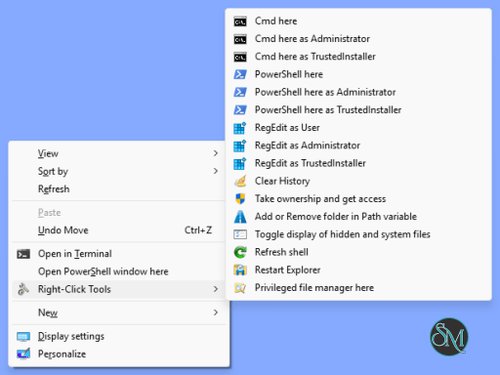

Right-Click Tools is a free, open-source Windows utility that expands File Explorer with a collection of useful system administration and file management shortcuts. Instead of navigating through multiple Windows settings or manually opening elevated terminals, users can access many common operations directly from a folder's right-click menu.
Developed by Les Ferch, the application is particularly useful for system administrators, developers, and advanced Windows users who frequently work with protected directories, command-line tools, file permissions, and system settings.
It supports both the classic and modern Windows 11 context menus, offers portable installation, and allows users to customize its commands through configuration files.
Features
Elevated Command Prompt and PowerShell
One of Right-Click Tools' most useful features is the ability to open command-line environments directly in the selected folder.
It provides shortcuts for:
Command Prompt.
Windows PowerShell.
PowerShell Core.
Commands can run as the current user, Administrator, or TrustedInstaller. Users can configure the default privilege level for individual tools or display a selection dialog when needed.
This is particularly convenient when managing system directories or troubleshooting Windows installations.
TrustedInstaller and Administrator Access
Right-Click Tools can launch supported utilities with elevated privileges, including the TrustedInstaller security context.
This is useful when working with protected Windows files and directories that cannot normally be modified by standard administrator accounts.
The application optionally creates a Windows Scheduled Task to provide privilege elevation without repeatedly displaying UAC prompts. This requires an initial administrative approval.
However, enabling this feature has security implications. The scheduled task could potentially be exploited to execute other code with elevated privileges. Users should understand this risk before enabling it, particularly on managed work computers.
File Manager and Folder Management
The File Manager Here feature opens a file manager directly at the selected directory.
Users can configure their preferred file manager through an INI configuration file. It can also launch the file manager as Administrator or TrustedInstaller.
Additional folder management tools include:
Taking ownership of folders and changing permissions.
Opening folders with long paths.
Adding or removing directories from the Windows PATH variable.
Toggling hidden and system files.
Restarting Windows Explorer.
Refreshing icon and thumbnail caches.
Configuring folder view settings.
These features are especially useful for users who regularly manage Windows system directories and development environments.
File Cleanup and Unblocking
The application includes a collection of maintenance tools for removing unnecessary files and adjusting file security properties.
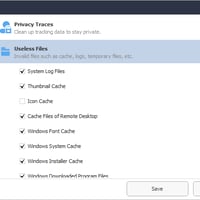
Its cleanup utility can remove selected categories of data, including temporary files, recent items, and auto-suggest entries. Users can also configure additional folder paths for cleanup.
The Unblock Files Here feature removes the Mark of the Web (MOTW) security metadata from files in the selected folder. It can optionally process subdirectories as well.
This is useful when working with downloaded files that Windows has marked as originating from the internet. The operation should only be performed on files from sources you trust.
Folder Options and Explorer Settings
Right-Click Tools provides convenient access to several Windows Explorer configuration options.
Users can modify global folder settings, disable automatic folder type discovery, control thumbnail behavior, and force specific folder types through desktop.ini.
It also provides shortcuts to Windows settings, installed applications, display scaling, and light or dark appearance options.
These controls reduce the need to navigate through multiple Windows configuration screens.
Shortcut and Date Time Tools
Two additional utilities extend the application's functionality.
Shortcut Tool can convert URL shortcuts into standard Windows LNK shortcuts and perform search-and-replace operations on shortcut properties such as the target, starting directory, and icon.
Date Time Tool allows users to modify file timestamps across a folder, with an option to include subdirectories.
These tools are useful for maintaining file collections and managing Windows shortcuts without installing separate utilities.
Screen Capture with Border
Right-Click Tools includes a dedicated Snip with Border feature for capturing application windows with a consistent surrounding border.
Users can configure the keyboard shortcut and border width. The default shortcut is Alt+Z.
Captured images are copied to the clipboard, making the tool convenient for documentation, tutorials, and technical reports.
Custom Commands and Launcher
The application includes a built-in launcher that provides access to its tools without requiring the Explorer context menu.
Users can also extend the launcher and More Tools submenu with third-party applications, executables, and scripts.
Configuration is handled through editable INI files, allowing users to specify:
Executable paths and command-line arguments.
Custom icons.
Default privilege levels.
Keyboard and launcher behavior.
Additional scripts and utilities.
This flexibility makes Right-Click Tools more than a fixed collection of shortcuts. It can serve as a customizable launcher for frequently used Windows administration commands.
Windows 11 Context Menu Support
Right-Click Tools supports both classic and modern Windows 11 context menus.
The installer can add a signed context menu handler for the modern interface, while registry-based integration is available for the classic menu.
This is an important advantage over older context-menu utilities that only support the legacy Explorer interface.
Multilingual Interface and Portable Mode
Right-Click Tools includes a language configuration file with 30 languages. Users can edit the language definitions to customize existing labels or add translations.
It also supports portable installation, allowing the application to run from a folder or removable drive. With the appropriate configuration, settings can be stored alongside the executable instead of the user's local application data.
Download Right-Click Tools 2.0.7 - Software Mirrors |
|---|
Right-Click Tools 2.0.7 for Windows |
Right-Click Tools 2.0.7 Source Code |
Right-Click Tools 2.0.7 Release Notes:The
|
Performance and Compatibility
Right-Click Tools is a lightweight Windows utility built with .NET. It integrates directly with File Explorer and can also operate through its standalone launcher.
The application supports Windows 7 and newer versions, including Windows 10 and Windows 11, with both 32-bit and 64-bit compatibility.
It supports standard and administrator accounts, multiple users on the same computer, and long file paths.
One limitation is that the context menu is designed for folders, drives, and the background of an open Explorer directory. It does not appear when right-clicking individual files.
Some operations may also take longer on their first launch because of .NET initialization and antivirus scanning.
The application is distributed under the MIT license, making its source code available for inspection and modification.
System Requirements
Windows 7, 8, 8.1, 10, or 11.
32-bit or 64-bit processor architecture.
.NET runtime requirements as specified by the release.
Administrator privileges for machine-wide installation and optional elevation-task configuration.
Windows Task Scheduler for the optional privilege elevation feature.
A portable version is available for users who prefer not to perform a conventional machine-wide installation.
Pros and Cons
Pros
Free and open-source under the MIT license.
Supports Windows 7 through Windows 11.
Works with both classic and modern Windows 11 context menus.
Provides Command Prompt, PowerShell, and PowerShell Core shortcuts.
Supports Administrator and TrustedInstaller execution.
Includes file ownership and permission management.
Provides cleanup, file unblocking, and Explorer maintenance tools.
Supports custom commands, scripts, and external applications.
Offers portable installation.
Includes 30 interface languages.
Supports long paths and multiple Windows user accounts.
Cons
Windows only, with no Linux or macOS support.
Context menu commands are designed for folders and drives rather than individual files.
Some advanced operations require elevated permissions.
Optional privilege elevation task introduces additional security considerations.
The interface and configuration system may feel technical to inexperienced users.
First-time execution of some tools can be delayed by .NET initialization or antivirus scanning.
How to Install
Right-Click Tools provides an installer and a portable ZIP package.
Installer Method
Visit the official GitHub repository.
Download the latest
RightClickTools-Setup.exeinstaller.Run the installer and approve the UAC prompt.
Select the desired context menu integration.
Optionally enable the privilege elevation task after reviewing its security implications.
Complete the installation.
On Windows 11, select the modern context menu integration if you want the tools to appear directly in the default right-click interface.
Portable Installation
Download the ZIP package from the GitHub repository.
Extract its contents to a permanent directory or removable drive.
Unblock
Setup.exethrough its Windows file properties if necessary.Run
Setup.exe.Enable the desired context menu and launcher options.
Click OK to apply the configuration.
The portable version can also run directly without adding context menu entries.
Customization
After installation, open the application's settings to access its configuration files.
The main configuration files include:
RightClickTools.inifor general application behavior.Launcher.inifor the built-in launcher.MoreTools.inifor additional commands.Language.inifor interface translations.
These files allow users to customize commands, icons, keyboard shortcuts, and privilege levels.
Final Verdict
Right-Click Tools is a practical Windows utility that brings many useful system administration functions into File Explorer. Its combination of elevated terminal access, TrustedInstaller support, file ownership management, cleanup tools, folder configuration, and customizable commands makes it particularly valuable for advanced Windows users.
Its support for both classic and modern Windows 11 context menus is another major advantage. The portable installation option and editable configuration files also make it flexible enough for different workflows.
The optional privilege elevation task deserves careful consideration because it introduces a security risk if misused. Users who do not need password-free elevation can leave this feature disabled and still benefit from the application's other tools.
Overall, Right-Click Tools is an excellent addition to Windows for developers, technicians, and administrators who want faster access to frequently used system utilities.