optimizerDuck v2.27.6

optimizerDuck v2.27.6

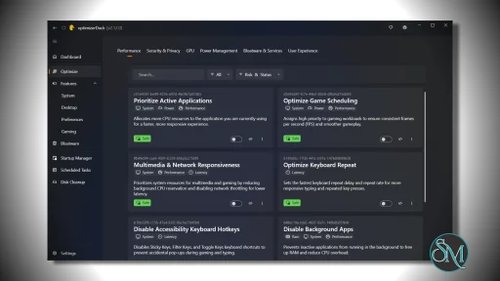
OptimizerDuck is a lightweight Windows optimization and tweaking utility designed to help users improve system responsiveness, remove unnecessary background activity, and apply common performance tweaks through a simplified interface. Unlike larger all in one system maintenance suites packed with aggressive upselling and bundled features, OptimizerDuck focuses more on straightforward optimization tools and cleaner usability.
(4.1)

Developer

fatDuck

Category

Utilities

Operating System

Windows

Date Published

Fri Aug 28 2026

Review optimizerDuck v2.27.6

OptimizerDuck is a Windows system optimization tool focused on improving performance, reducing unnecessary background processes, and simplifying common maintenance tasks.

The software combines cleanup utilities, startup management, privacy tweaks, and performance related adjustments into a lightweight desktop application.

OptimizerDuck targets users who want easier access to common optimization settings without manually editing Windows configuration tools.

OptimizerDuck is a lightweight Windows optimization and tweaking utility designed to help users improve system responsiveness, remove unnecessary background activity, and apply common performance tweaks through a simplified interface. Unlike larger all in one system maintenance suites packed with aggressive upselling and bundled features, OptimizerDuck focuses more on straightforward optimization tools and cleaner usability.

The software appeals primarily to users looking for quick Windows cleanup and optimization without navigating overly complicated system utilities.

Key Features of OptimizerDuck

  • System Cleanup Tools
    OptimizerDuck includes cleanup features for temporary files, cache data, unnecessary logs, and leftover system clutter.

  • Startup Management
    Users can disable unnecessary startup applications to improve boot speed and reduce background resource usage.

  • Privacy and Telemetry Tweaks
    The software includes options aimed at reducing Windows telemetry collection and disabling unnecessary background services.

  • Performance Optimization Presets
    OptimizerDuck provides quick optimization profiles designed for gaming, general responsiveness, or lower resource consumption.

  • Simple Interface Design
    The interface focuses on accessibility and quick navigation rather than exposing overwhelming amounts of technical information.

Download optimizerDuck v2.27.6 - Software Mirrors

Download optimizerDuck v2.27.6
optimizerDuck-Windows-x64-2.27.6.exe | 99.37 MB

optimizerDuck v2.27.6 Release Notes:

This release significantly expands Startup Manager, introduces a live taskbar progress indicator, and adds a fresh set of system, boot, and gaming tweaks. It also brings important safety improvements to the revert system, a more user-friendly bloatware warning dialog, and a range of quality-of-life enhancements. A huge thank you to @loliri for contributing numerous features and fixes to this release, and to @ether-btc for the detailed bug report that helped uncover and address issues in the revert system and Disk Cleanup.

New

Startup Manager gets much smarter, thanks to @loliri

  • Modern packaged apps (UWP / MSIX) are now detected, including Windows Store apps that register themselves to start with Windows. You can toggle them on or off, and their state stays in sync with Windows Settings. Icons are pulled from the package automatically, so every app still shows a recognizable logo.
  • 32-bit apps are now scanned as well. Many older apps and game launchers register under the 32-bit view of the registry, so optimizerDuck now shows them in the same list and lets you manage them alongside everything else.
  • Real timestamps are now written when you toggle a startup item, matching what the native Windows Task Manager stores. You can tell exactly when a change was made.

Taskbar progress indicator

When a long optimization is running, the progress bar now appears directly on the optimizerDuck icon in your taskbar. You can keep working in other apps and still know how much time is left.

Bloatware safety dialog

Before removing any package whose name looks unusual or could be a system component, optimizerDuck now shows a clear confirmation dialog with the package name, publisher, version, and a risk badge, so you can make a safe choice and cancel the removal if something looks off.

Customizations, thanks to @loliri

  • Combine taskbar buttons is a new option that controls how Windows groups taskbar buttons when you have many windows open (Always, When full, Never). The same setting applies on every monitor, so the taskbar looks the same on each screen. Windows 11 for multi-monitor support.
  • Verbose Status shows a detailed step-by-step message during startup, shutdown, and logon. Useful when you want to find out why your PC boots slowly. Note: this only takes effect if DisableStatusMessages is not also set.
  • UTC hardware clock sets your motherboard clock to UTC, so the time does not jump back and forth if you dual-boot Windows and Linux.
  • Smart name resolution stops Windows from sending your DNS requests across every active network adapter.
  • DLSS on-screen indicator lets you choose whether the small NVIDIA DLSS watermark appears in your games. You can pick Off, Debug only, or All versions. The option is shown only if your PC has an NVIDIA graphics card.

Optimizations, thanks to @loliri

  • WebDAV file size limit raises the default WebDAV upload and download size from 50 MB to 4 GB, fixing the 0x800700DF error you can get when copying large files over a WebDAV drive. Requires the WebClient service to be running.
  • Windows Update pause limit raises the longest time you can pause Windows Updates, giving you more control over when they install. Be aware that pausing too long can leave your system without security patches.

Improvements

  • Source code viewer uses your installed version. Clicking "view source on GitHub" inside the app now opens the file at the exact release tag matching your installed version, instead of the development branch. You always see the code you are actually running.
  • Smoother app during long operations. optimizerDuck stays responsive while running long optimizations, disk cleanups, and configuration loads. No more freezes during heavy work.
  • Cleaner navigation and dialogs. Sidebar icons for Optimize, Startup Manager, and Scheduled Tasks have been refreshed. Spacing inside cards and detail popups has been tightened across the app.

Fixes

  • Revert system is now safer on partial failure. When you undo a tweak that has several steps, optimizerDuck now keeps the undo record if any step fails. You can retry without losing your saved state, and the record is only removed when every step succeeds. Thanks to @ether-btc.
  • Path safety check hardened. Strengthened the security check that loads revert files so it can no longer be tricked by unusual folder names. Thanks to @ether-btc.
  • "Open file location" made safer. When you open a startup program's file location, optimizerDuck now validates the path and blocks attempts to pass extra arguments. Thanks to @ether-btc.
  • Disk Cleanup no longer touches running .NET temp files. Fixed an inverted filter that could delete .NET temporary files while a .NET application was still using them, which previously could cause the running app to crash. Thanks to @ether-btc.
  • Bing Search toggle works correctly, thanks to @loliri. The Bing Search customization now reads and writes both registry keys and group policies, so the on-screen state always matches what Windows actually uses.
  • Taskbar alignment reads the actual default. On fresh Windows installs where the registry value is missing, the Customize setting now correctly reports Center (the Windows default) instead of showing a "Custom" or "Not set" placeholder.

New Contributors

  • @loliri made their first contribution in https://github.com/itsfatduck/optimizerDuck/pull/65

Full Changelog: https://github.com/itsfatduck/optimizerDuck/compare/v2.26.2...v2.27.6

User Experience

One of OptimizerDuck’s biggest strengths is its lightweight and approachable design.

Many Windows optimization suites become cluttered with advertisements, bundled features, registry cleaners, driver updaters, and subscription prompts. OptimizerDuck takes a cleaner approach with a simpler workflow and more focused utility set.

The interface is beginner friendly enough for casual users while still exposing enough controls for enthusiasts who want direct access to optimization options.

However, like most system optimization software, users should understand that performance gains vary significantly depending on hardware condition, Windows configuration, and existing system health.

Performance and Effectiveness

OptimizerDuck performs well as a lightweight maintenance utility.

Startup management and background service optimization can noticeably improve responsiveness on older or lower powered systems. Temporary file cleanup may also recover storage space and reduce system clutter.

That said, users should avoid unrealistic expectations. Modern Windows versions already manage memory, caching, and storage fairly efficiently. Optimization tools generally provide incremental improvements rather than dramatic hardware level performance increases.

The software appears most useful for simplifying maintenance tasks rather than acting as a miracle performance booster.

Security and Safety Considerations

System optimization tools always require careful use because aggressive tweaks can occasionally introduce instability or disable useful Windows functionality.

OptimizerDuck appears relatively conservative compared to more aggressive registry cleaner style applications, which is generally a positive sign.

Users should still create restore points or backups before applying major optimization changes, especially when modifying system services or telemetry settings.

Pros

  • Lightweight and simple interface

  • Beginner friendly optimization workflow

  • Useful startup and cleanup tools

  • Less bloated than many optimization suites

  • Quick access to Windows tweaks

  • Minimal resource usage

Cons

  • Performance improvements vary by system

  • Some tweaks may have limited practical impact

  • Advanced users may want deeper configuration options

  • Windows already handles many optimizations automatically

  • Optimization software category often creates unrealistic expectations

OptimizerDuck is best suited for casual Windows users, older PC owners, and users who want simple maintenance and cleanup tools without large commercial optimization suites.

Advanced power users may still prefer manual system tuning and native Windows administrative tools.

OptimizerDuck offers a clean and lightweight approach to Windows optimization with an emphasis on simplicity rather than aggressive marketing or bloated feature sets. While no optimization utility can magically transform weak hardware, the software provides a practical set of cleanup and maintenance tools for users looking to streamline Windows performance and reduce unnecessary background activity.

Comments on optimizerDuck v2.27.6