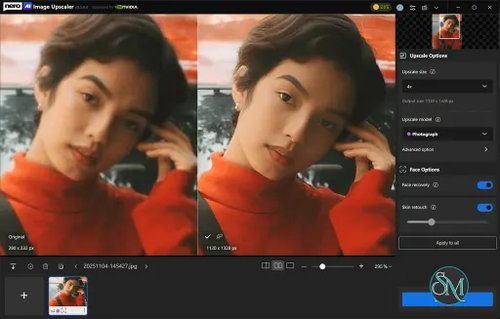

Nero AI Image Upscaler is an AI-powered image enhancement application that enlarges photos, illustrations, portraits, and digital artwork while improving their apparent clarity. Unlike conventional resizing tools, it uses specialized AI models to reconstruct details, sharpen edges, and reduce visible image artifacts.
The software supports enlargement up to 8× and can generate extremely high-resolution output, making it useful for restoring older photographs, improving product images, preparing artwork for printing, and enhancing anime illustrations. It offers local processing on your computer and optional cloud processing for supported tasks.
With several AI models, batch processing, and customizable output dimensions, Nero AI Image Upscaler provides a range of tools for users who want more control over image enhancement.
Features
AI Image Upscaling
Nero AI Image Upscaler can enlarge images by 2×, 4×, or 8×. It uses AI models to generate additional image detail rather than simply stretching existing pixels.
The application supports output resolutions up to 1,024 megapixels, subject to format and processing limitations. This makes it suitable for preparing images for large displays, printing, and other high-resolution applications.
However, increasing an image's resolution does not guarantee that the original detail will be recovered. AI-generated textures and facial features can sometimes look artificial, especially when the source image is extremely blurry or low quality.
Multiple AI Enhancement Models
The software offers specialized models for different types of images:
Standard: General-purpose enhancement for landscapes, architecture, and mixed-content images.
Photo: Designed for natural-looking photographs with balanced sharpness and smoother transitions.
Anime: Optimized for anime, illustrations, cartoons, and digital artwork.
Iris: Focuses on fine details such as hair, fur, feathers, and textured surfaces.
Reconstruct: Regenerates realistic-looking textures and details in low-resolution or heavily compressed images.
Face Recovery: Enhances facial details in low-quality portraits.
Sharpen: Improves clarity in images with weak edge definition.
Unblur: Helps reduce motion blur, camera shake, and focus blur.
Model availability depends on the selected plan. Choosing the right model for the source image can make a noticeable difference in the final result.
Photo Restoration and Detail Enhancement
The Face Recovery feature is designed to improve faces in low-resolution portraits, while Reconstruct can help enhance old photographs and compressed images.
These features can be useful when working with family photos, scanned images, and older digital pictures. Nevertheless, AI restoration may invent details that were not present in the original image, so the output should not automatically be treated as an accurate reconstruction of historical or photographic evidence.
Local and Cloud Processing
Nero AI Image Upscaler offers local processing through your computer's CPU or supported GPU. This approach allows compatible tasks to run without sending the image to Nero's cloud processing service.
The Pro plan also offers cloud GPU processing for supported features. Cloud processing can be useful for large jobs or computers that lack a powerful graphics card, but it requires an internet connection and consumes credits.
Users working with confidential photographs should pay attention to the selected processing mode. Local processing and cloud processing have different privacy implications.
Batch Image Processing
The application supports batch processing of up to 100 images in a single workflow. Users can add multiple files, select an enhancement model, apply settings across queued images, and process the collection.
This feature is useful for photographers, online sellers, designers, and content creators who regularly need to enhance multiple images.
Batch processing can save time compared with editing files individually, although processing speed depends on the chosen model, image dimensions, and available hardware.
Custom Resolution and Print Settings
Nero AI Image Upscaler allows users to set a target resolution manually rather than relying only on fixed enlargement ratios.
For print preparation, users can specify physical dimensions in inches, centimeters, or millimeters and choose a target DPI. The application calculates the required pixel dimensions automatically.
This is helpful when preparing images for posters, printed photographs, and other materials with specific size requirements.
Image Preview and Export
The application includes preview options for comparing the original and enhanced images. Users can inspect the results before saving them, helping them identify unwanted artifacts or excessive sharpening.
Supported formats include JPG, PNG, WebP, and BMP for input, with TIFF also available for output. Export settings include file naming, destination selection, and JPEG compression controls.
Performance and Compatibility
Nero AI Image Upscaler is available for Windows and macOS, with different hardware requirements for each platform.
On Windows, the application requires a 64-bit version of Windows 10 or Windows 11 and at least 8 GB of RAM. Hardware-accelerated processing requires a supported NVIDIA graphics card with at least 4 GB of VRAM. CPU processing is also available for supported models, although it can be considerably slower.
On macOS, the application requires macOS 14.1 or later and at least 16 GB of memory. Apple silicon and supported Intel-based Macs are listed as compatible.
Performance varies according to the image size, selected AI model, processor, graphics hardware, and output resolution. Large images can require substantial memory and processing time. The application also limits AI upscaling for source images larger than 64 megapixels, although certain face-related features remain available for larger inputs.
Nero AI Image Upscaler is best suited to users who want dedicated AI enhancement tools rather than a full photo-editing suite. It focuses on enlarging and improving images, so users who need advanced layer editing, detailed color grading, or comprehensive graphic design tools may still need another application.
System Requirements
Windows
Operating system: Windows 10 or Windows 11, 64-bit.
Memory: At least 8 GB RAM.
Processor: A sixth-generation or newer Intel Core or Intel Xeon processor is recommended.
Graphics: NVIDIA GPU with at least 4 GB VRAM for hardware-accelerated upscaling.
Storage: Approximately 20 GB of available space.
Internet connection: Required for installation and license verification.
macOS
Operating system: macOS 14.1 or later.
Processor: Apple silicon or a supported Intel Mac from 2017 onward.
Memory: At least 16 GB of unified memory, with 24 GB or more recommended for high-resolution work.
Storage: Approximately 4 GB of available space.
Internet connection: Required for activation and model downloads.
Actual requirements can vary with the selected processing method and image dimensions. Check the official system requirements before installing the software.
Pros and Cons
Pros
AI upscaling up to 8×.
Supports very high-resolution image output.
Specialized models for photos, anime, portraits, and detailed textures.
Face Recovery and Reconstruct features for image enhancement.
Local processing available for supported tasks.
Optional cloud GPU processing.
Batch processing for up to 100 images.
Custom resolution and print DPI settings.
Supports common image formats, including JPG, PNG, WebP, and BMP.
Before-and-after previews help users evaluate the results.
Cons
High-resolution processing can require substantial memory and processing time.
Hardware acceleration on Windows requires a supported NVIDIA GPU.
The free version adds a watermark to exported images.
Cloud processing requires a paid plan and consumes credits.
Some advanced models and features are restricted to eligible plans.
AI enhancement can invent details or produce unnatural textures.
Images larger than 64 megapixels cannot use the standard AI upscaling models.
Requires an internet connection for installation, activation, and model downloads.
How to Install
Visit the official Nero AI Image Upscaler website.
Download the installer for your operating system.
Run the installer and follow the on-screen instructions.
Launch the application and complete any required activation steps.
Import an image by dragging and dropping it into the application or using the image import option.
Choose an enlargement factor or enter a custom output resolution.
Select an AI model suited to your image, such as Photo for natural photographs or Anime for illustrations.
Choose local processing or cloud processing if your plan supports it.
Start processing and compare the result with the original image.
Save the enhanced image in your preferred format.
Start with a small image and moderate enlargement factor to evaluate the output quality before processing a large collection.
Final Verdict
Nero AI Image Upscaler is a capable option for users who want to enlarge images and improve their apparent detail without relying on traditional resizing alone. Its specialized AI models, batch processing, custom print settings, and support for high-resolution output make it useful for photography, digital artwork, product images, and older photographs.
Local processing is a valuable option for users who prefer to keep supported image-enhancement tasks on their own computers. Cloud processing offers an alternative for demanding workloads, but it introduces additional costs and requires users to consider how their images are handled.
The main drawbacks are the hardware requirements for accelerated processing, the watermark in the free version, and the limitations of AI-generated detail. Users should also check which features their license includes before relying on advanced models.
Nero AI Image Upscaler is worth considering if you regularly enlarge photographs, restore old images, or prepare high-resolution artwork. It offers a useful combination of AI models and practical export controls, although results should always be reviewed for unnatural details before the images are used professionally.