
Coolmuster Mobile Transfer is desktop software designed to transfer personal data between Android phones, iPhones, iPads, and other supported mobile devices. It helps users migrate selected content when switching phones without relying entirely on cloud backups or manually copying files.
The application supports Android-to-Android, iPhone-to-iPhone, Android-to-iPhone, and iPhone-to-Android transfers. Depending on the source and destination platforms, users can move contacts, text messages, call logs, photos, videos, music, documents, calendars, bookmarks, and other supported data.
Unlike cloud-based migration services, Coolmuster Mobile Transfer primarily uses a computer to connect the two devices and manage the transfer. This makes it useful for users who prefer a wired workflow, although Android devices also support wireless connection options.
Features
Transfer Data Between Android and iPhone
Coolmuster Mobile Transfer supports migration between Android and iOS devices, making it useful when changing mobile platforms.
Users can transfer selected categories of data rather than copying everything indiscriminately. However, the available categories depend on the direction of the transfer.
For example, Android-to-iPhone transfers support contacts and documents such as PDF and ePub files. Moving from an iPhone to Android supports additional categories, including SMS, photos, videos, music, and eBooks.
This flexibility is useful, but users should check the supported data types before starting a migration.
Android-to-Android Migration
When transferring between Android devices, Coolmuster Mobile Transfer supports contacts, SMS messages, call logs, photos, videos, music, documents, and applications.
The software can help users move essential information from an old phone to a new one without manually transferring each category separately.
Application transfer depends on the supported device and application format. Users should not assume that every installed application, its private data, or its account sessions will be reproduced exactly on the destination phone.
iPhone-to-iPhone Transfer
Coolmuster Mobile Transfer can transfer several types of data between supported Apple devices, including contacts, calendars, Safari bookmarks, and eBooks.
It also documents support for transferring notes, but note transfer has limitations on newer iOS versions. Users who depend on Apple Notes should verify compatibility before proceeding.
The ability to select supported categories makes the application useful when migrating specific information between Apple devices without relying exclusively on iCloud.
Selective Data Transfer
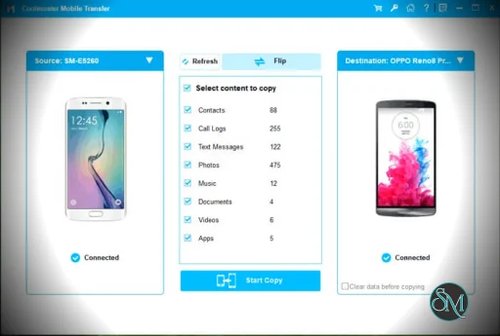
The application organizes transferable information into categories, allowing users to choose which types of data to copy.
Depending on the devices involved, available categories include:
Contacts and call logs.
Text messages.
Photos and videos.
Music and documents.
Calendars and Safari bookmarks.
eBooks in PDF and ePub formats.
Supported applications.
This category-based approach is convenient when users want to migrate important information without transferring every available item.
USB and Wireless Connections
Coolmuster Mobile Transfer supports USB connections for Android and iOS devices. Android devices can also connect through Wi-Fi using the companion Android application.
For USB connections, Android users may need to enable USB debugging and authorize the computer. iPhone and iPad users must unlock their devices and approve the Trust This Computer prompt.
The connection process is generally straightforward, but device drivers, permissions, and compatibility can affect whether a phone is recognized successfully.
Windows and macOS Support
Coolmuster Mobile Transfer is available for Windows and macOS. It provides a desktop interface for connecting devices, selecting transferable content, and initiating the migration.
The application supports a broad range of Android manufacturers and Apple devices. Nevertheless, the developer acknowledges that compatibility can vary between individual phone models.
Check the official compatibility documentation if you plan to transfer data from an older or less common device.
Performance and Compatibility
Coolmuster Mobile Transfer uses a computer as an intermediary between the source and destination devices. This provides a practical alternative to cloud-based migration, particularly when transferring large amounts of data over a reliable USB connection.
Actual transfer speeds depend on the phones, USB connection, selected data, and the amount of information being copied. The developer does not establish a universal transfer speed that applies to every device.
The software supports Windows 7 or later and macOS 10.10 or later according to its published technical specifications. Its device compatibility documentation also lists support for recent Android and iOS releases.
However, the breadth of supported operating systems does not guarantee that every phone model or data category will work identically. Some transfers have platform-specific restrictions, and certain types of application data may not be transferable.
The trial version is also limited: it allows the transfer of up to 10 contacts. Users need the full version to remove this restriction and transfer supported data without that trial limit.
System Requirements
Coolmuster Mobile Transfer supports the following environments:
Windows: Windows 7 or later.
macOS: Mac OS X 10.10 or later.
Android: Supported Android phones and tablets, subject to device compatibility.
iOS: Supported iPhones, iPads, and iPods, subject to device compatibility.
The published minimum desktop requirements include a 1 GHz processor, at least 256 MB of RAM on Windows, 512 MB on Mac, and 200 MB of free disk space. The developer recommends at least 1 GB of RAM for Windows.
These are the software's stated minimum requirements. Newer operating systems, device drivers, and connected phones may impose additional requirements.
Pros and Cons
Pros
Transfers data between Android and iOS devices.
Supports Android-to-Android and iPhone-to-iPhone migration.
Allows users to select the data categories they want to transfer.
Supports contacts, messages, photos, videos, music, and other data types.
Uses a desktop interface rather than requiring an entirely cloud-based workflow.
Supports USB connections and wireless connections for Android.
Compatible with many Android manufacturers and Apple devices.
Provides a trial version for testing basic transfer functionality.
Cons
The free trial only transfers up to 10 contacts.
Full functionality requires a paid license.
Supported data types differ between transfer directions.
Some features, including Notes transfer, have iOS-specific restrictions.
Certain phone models may not be supported.
Android USB transfers can require enabling developer settings and granting permissions.
Does not replace a comprehensive computer backup solution.
How to Install
Step 1: Download the Installer
Visit the official Coolmuster Mobile Transfer website and download the Windows or macOS installer.
Choose the version appropriate for your computer and follow the installation instructions.
Step 2: Connect Both Phones
Launch the application and connect the source and destination devices to your computer.
For Android devices, enable USB debugging if requested and authorize the computer. For Apple devices, unlock the device and approve the Trust This Computer prompt.
If using a supported Android wireless connection, follow the application's instructions to connect both devices through the same network.
Step 3: Verify the Transfer Direction
Check that the old phone appears as the source and the new phone appears as the destination.
If the devices are positioned incorrectly, use the interface's Flip option to reverse their roles.
Verify this carefully before transferring any data.
Step 4: Select Data Categories
Choose the information you want to transfer from the available categories.
The options depend on the source and destination platforms. Review the selections before proceeding, particularly when moving between Android and iOS.
Step 5: Start the Transfer
Click Start Copy to begin the migration.
Keep both devices connected until the process finishes. Afterward, check the destination phone to confirm that the transferred information is available and complete.
Final Verdict
Coolmuster Mobile Transfer is a convenient tool for users who want to migrate selected data between Android phones and Apple devices through a desktop application. Its support for multiple transfer directions, category-based selection, and USB connections makes it useful when setting up a new phone.
Its main advantage is convenience. Rather than transferring every supported item manually, users can select the relevant categories and initiate the process from a single interface.
However, the software is not a universal phone-cloning solution. Data availability differs between platforms, some features have operating-system restrictions, and the trial version is limited to 10 contacts. Users should also distinguish phone-to-phone migration from a full backup to a computer, which is not the application's primary purpose.
Coolmuster Mobile Transfer is worth considering for straightforward phone migration, especially when moving between Android and iOS. Before purchasing, verify that it supports your specific devices and the data you need to transfer.